Category: Artificial Intelligence
Artificial Intelligence and AI Tools is your source for the latest AI news, tutorials, reviews, and expert insights. Learn about ChatGPT, Gemini, Claude, AI image generators, video tools, coding assistants, automation software, and productivity apps. Discover how AI is transforming business, content creation, marketing, development, and everyday workflows.

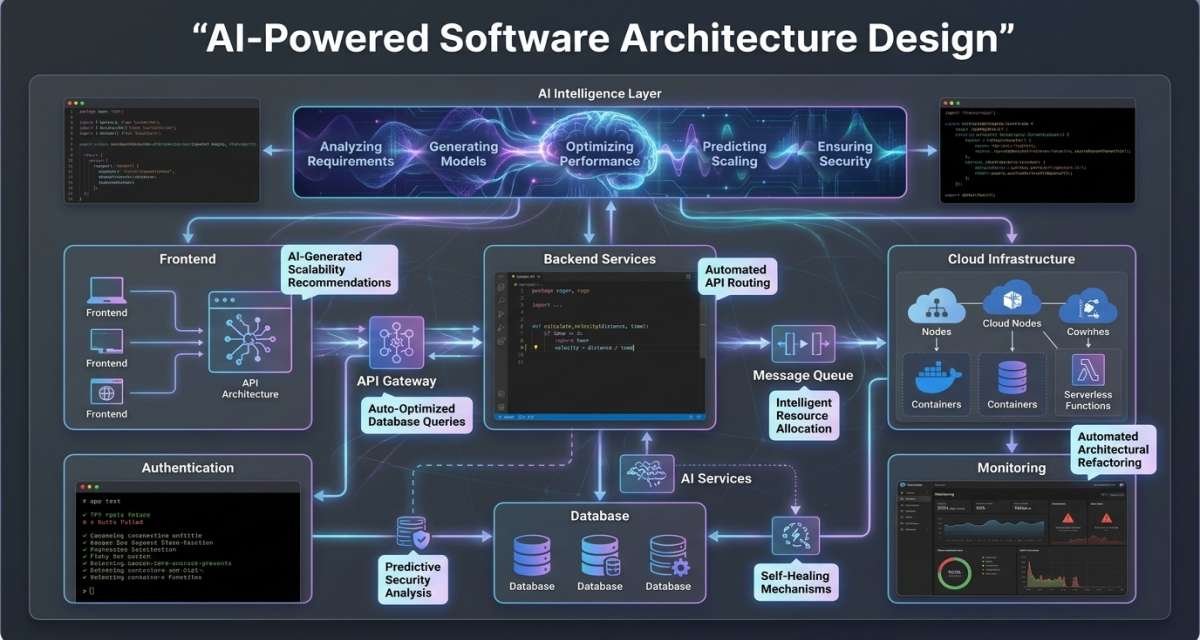
AI-Powered Software Architecture Design: Practical Guide
AI can help software teams turn rough requirements into architecture options, compare trade-offs, draft decision records, create diagram outlines, and identify design risks with the right AI tools for software developers. But architecture still depends on human judgment. Business goals, engineering skills, security requirements, cost limits, performance expectations, existing systems, and future product changes all…
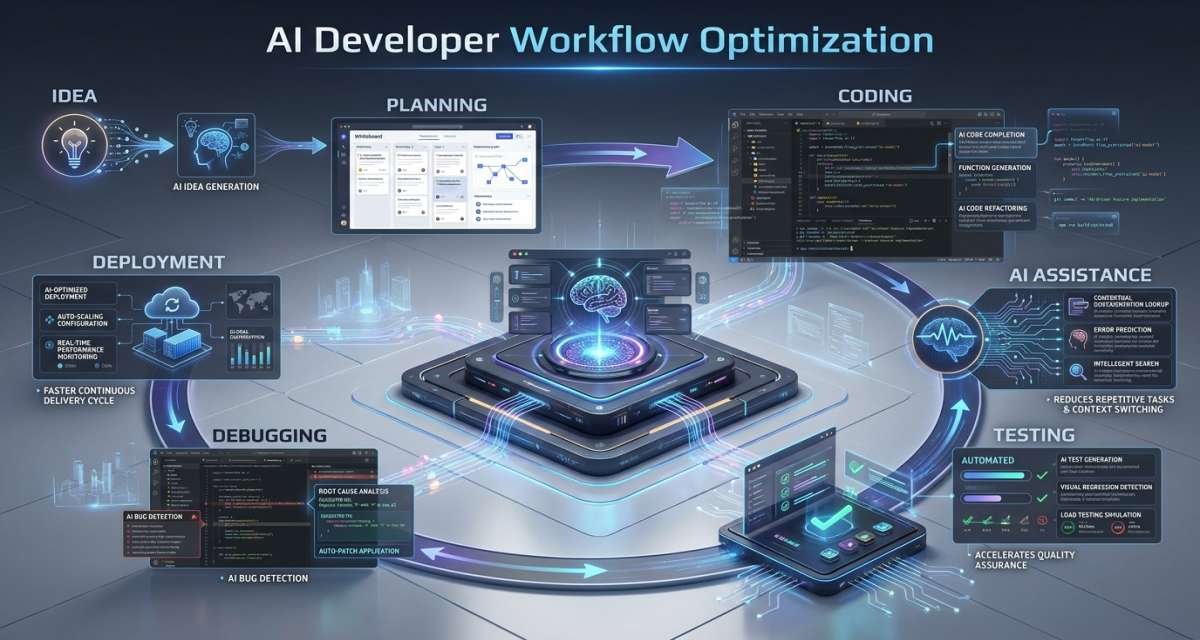
AI Developer Workflow Optimization: Practical Guide 2026
AI can help developers plan tasks, understand unfamiliar code, draft changes, generate tests, debug problems, review pull requests, and update documentation. The value, however, does not come from generating as much code as possible. AI developer workflow optimization means using AI to reduce friction across the software delivery process while keeping developers responsible for correctness,…
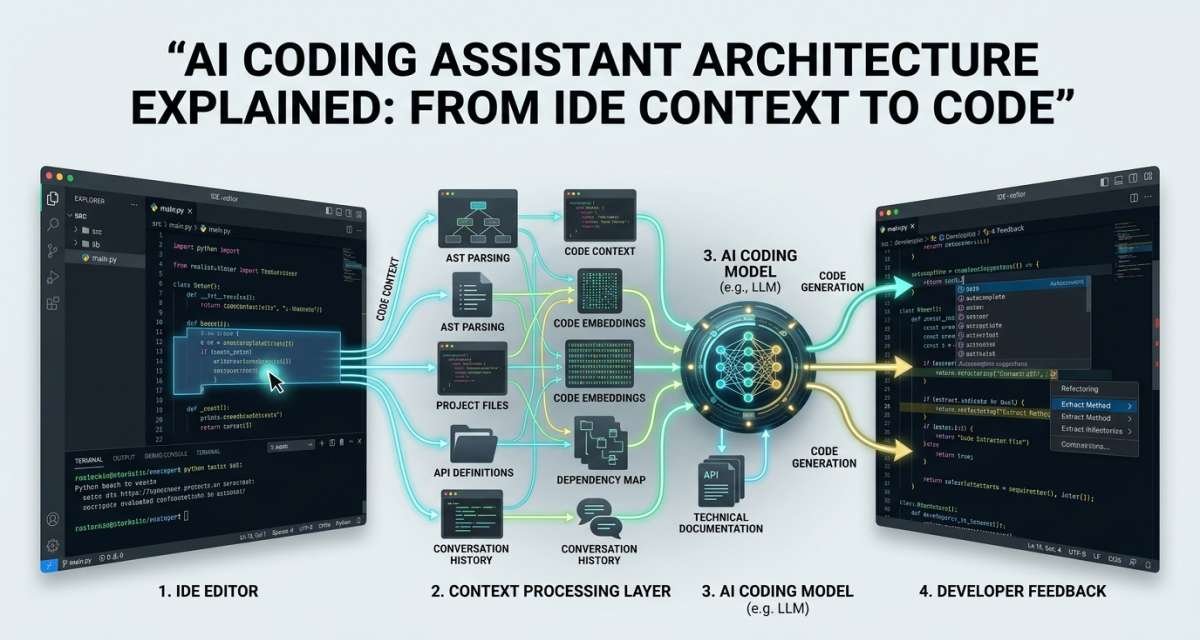
AI Coding Assistant Architecture Explained: From IDE Context to Code
An AI coding assistant is more than a language model attached to a code editor. A useful coding system has to understand developer intent, identify relevant project context, find related files, build a model request, generate an answer, present changes clearly, and give the developer a way to review the result. Explore AI tools for…
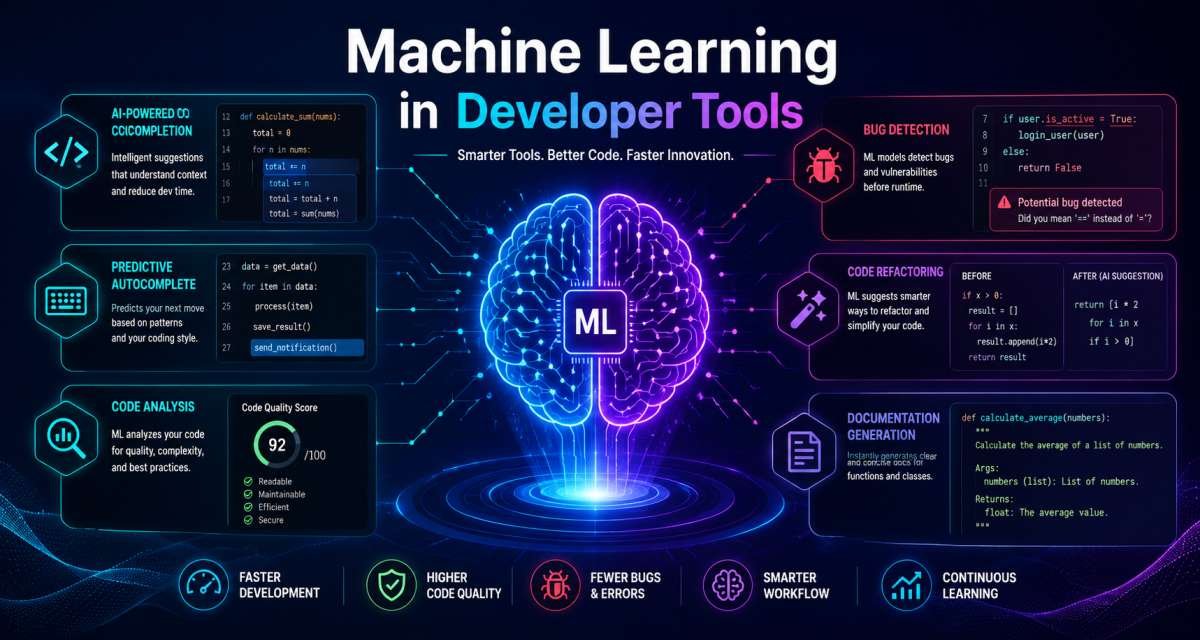
Machine Learning in Developer Tools: Practical Guide 2026
Machine learning in developer tools means using AI models to help developers write, review, test, debug, document, and maintain software. These tools do not remove the need for engineering judgment. They handle support tasks so developers can spend more time on logic, solving product problems, and improving code quality. This guide is primarily for software…
AI Code Review Systems: How They Work and How Teams Should Use Them
Ai code review systems use AI, automation, and code analysis to help software teams review changes before they are merged. They can scan pull requests, explain risky changes, suggest improvements, flag missing tests, and help reviewers focus on higher-value decisions. They do not replace human reviewers. A good review process still needs developer judgment, testing,…
AI – Driven Version Control Systems: A Practical Guide for Software Teams
AI-assisted version control is the use of artificial intelligence to help developers track, review, explain, and manage code changes. It does not replace Git, pull requests, CI checks, or human approval. It adds a layer of help around commit history, diffs, branches, pull request summaries, code review, and team collaboration. This guide is for developers,…
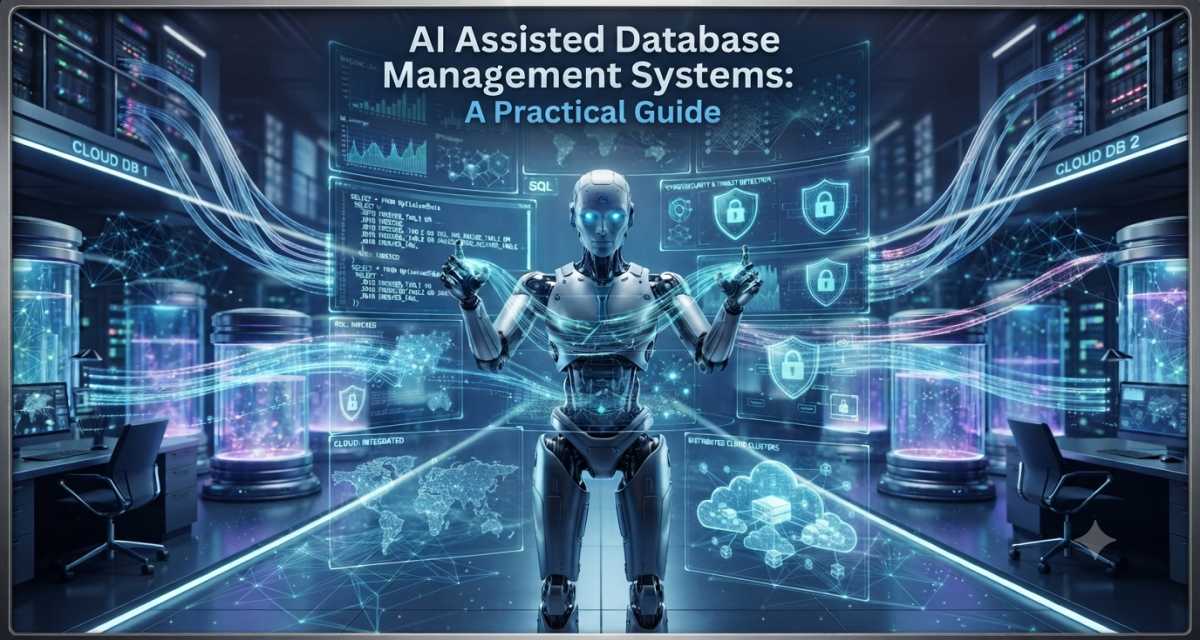
AI Assisted Database Management Systems: A Practical Guide
Database work used to be mostly manual. A developer or DBA wrote SQL, checked slow queries, reviewed indexes, watched logs, tuned workloads, and answered data access requests from other teams. AI is changing parts of that workflow. It can explain SQL, generate draft queries, summarize database health, detect unusual behavior, suggest indexes, and help non-technical…
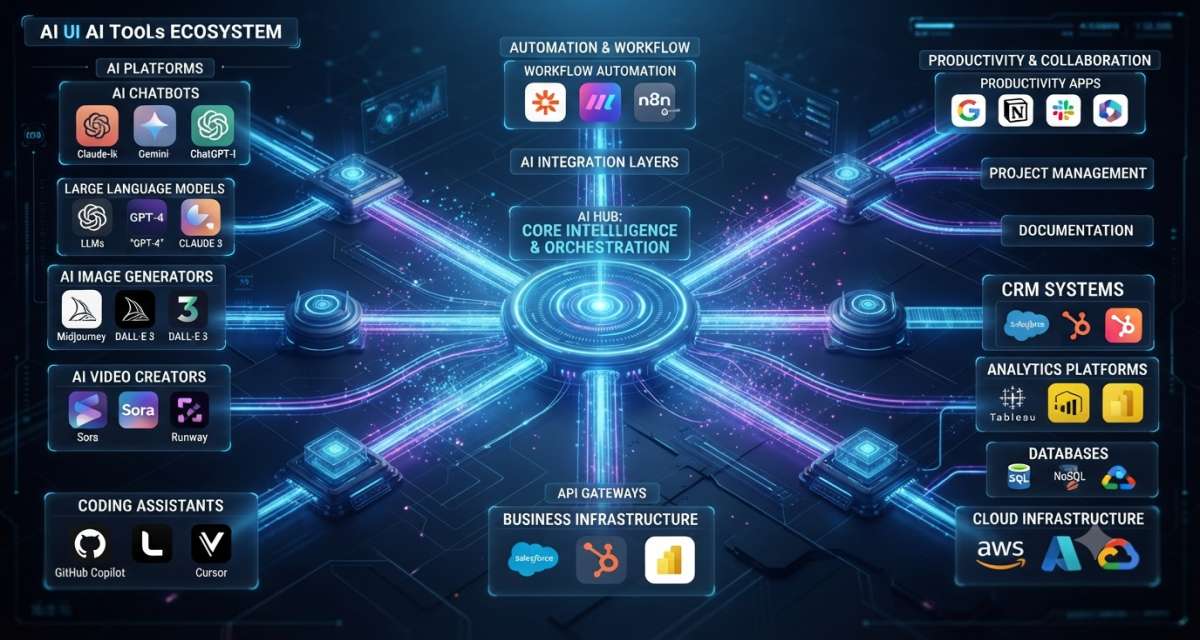
AI Tools Ecosystem Structure: A Clear Guide for Teams
Most teams do not struggle because they lack AI tools. They struggle because every tool looks useful, but the pieces do not clearly fit together. One team may use ChatGPT for writing, GitHub Copilot for coding, a vector database for retrieval, an automation tool for workflows, a chatbot for support, and a reporting assistant for…
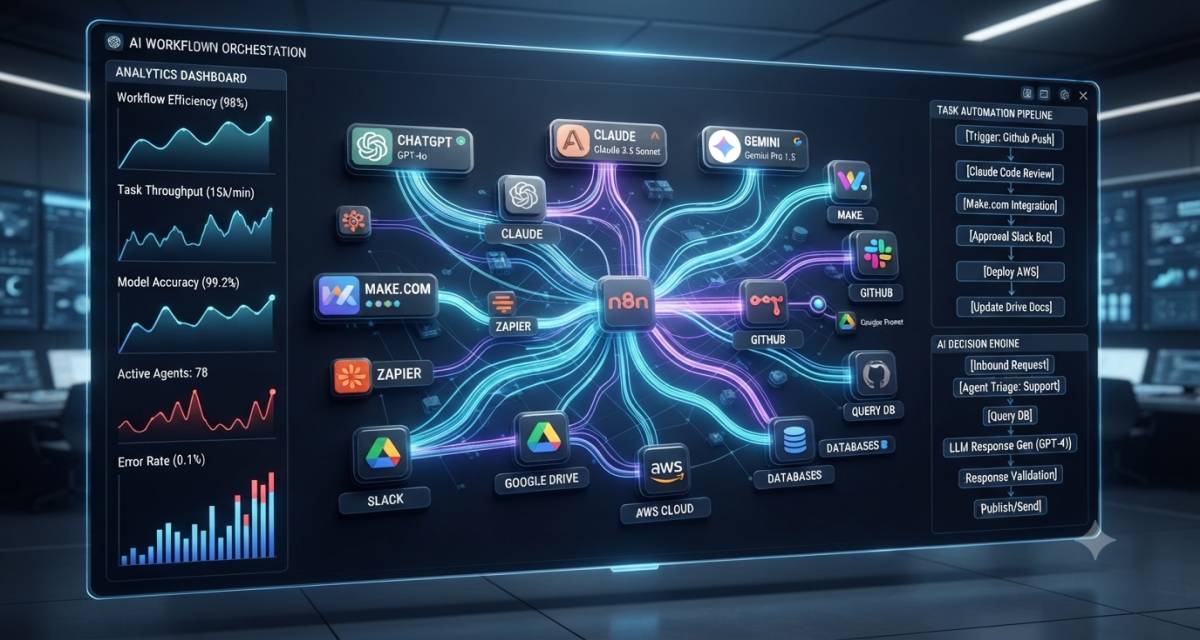
AI Workflow Orchestration Systems: A Practical Guide for Developers and SaaS Teams
AI workflows often start with a simple prompt connected to a single tool. Then the workflow grows. The model needs to fetch data, call APIs, ask another agent for help, wait for human approval, retry failed steps, and write logs for review. That is where AI workflow orchestration systems come in. They provide the structure…
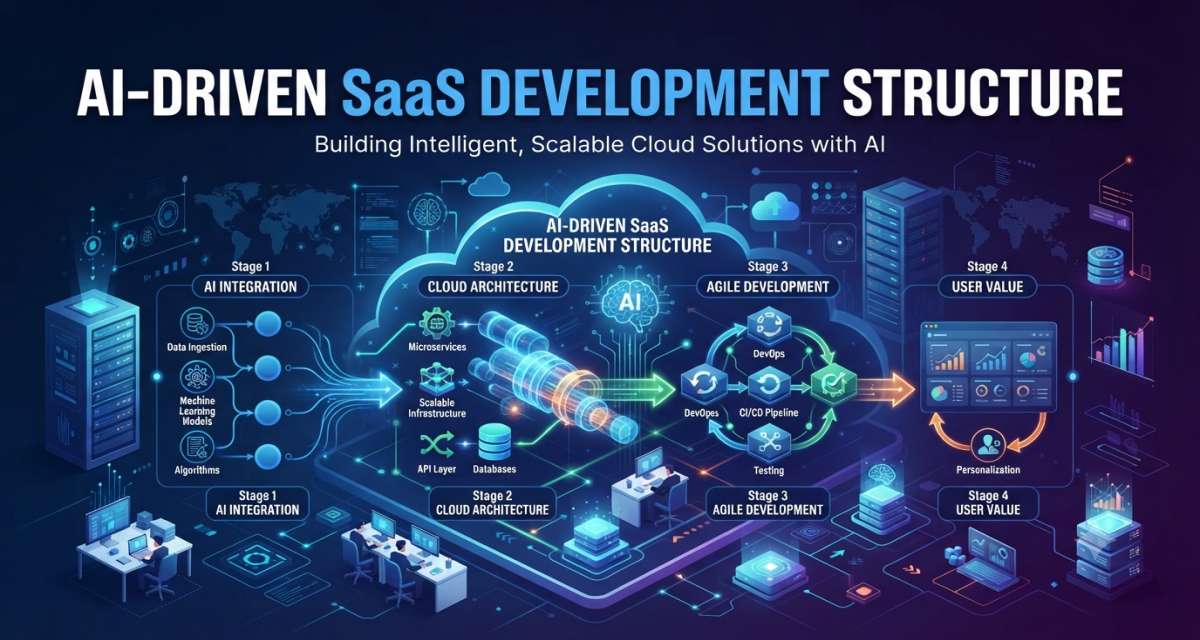
AI-Driven SaaS Development Structure: A Practical Guide 2026
A normal SaaS product usually starts with users, features, database design, authentication, billing, and deployment. An AI SaaS product needs all of that, but it also needs model behavior, data quality, prompt control, evaluation, security rules, and human review. That is why an AI-driven SaaS development approach should not be limited to “add ChatGPT to…